Spaces
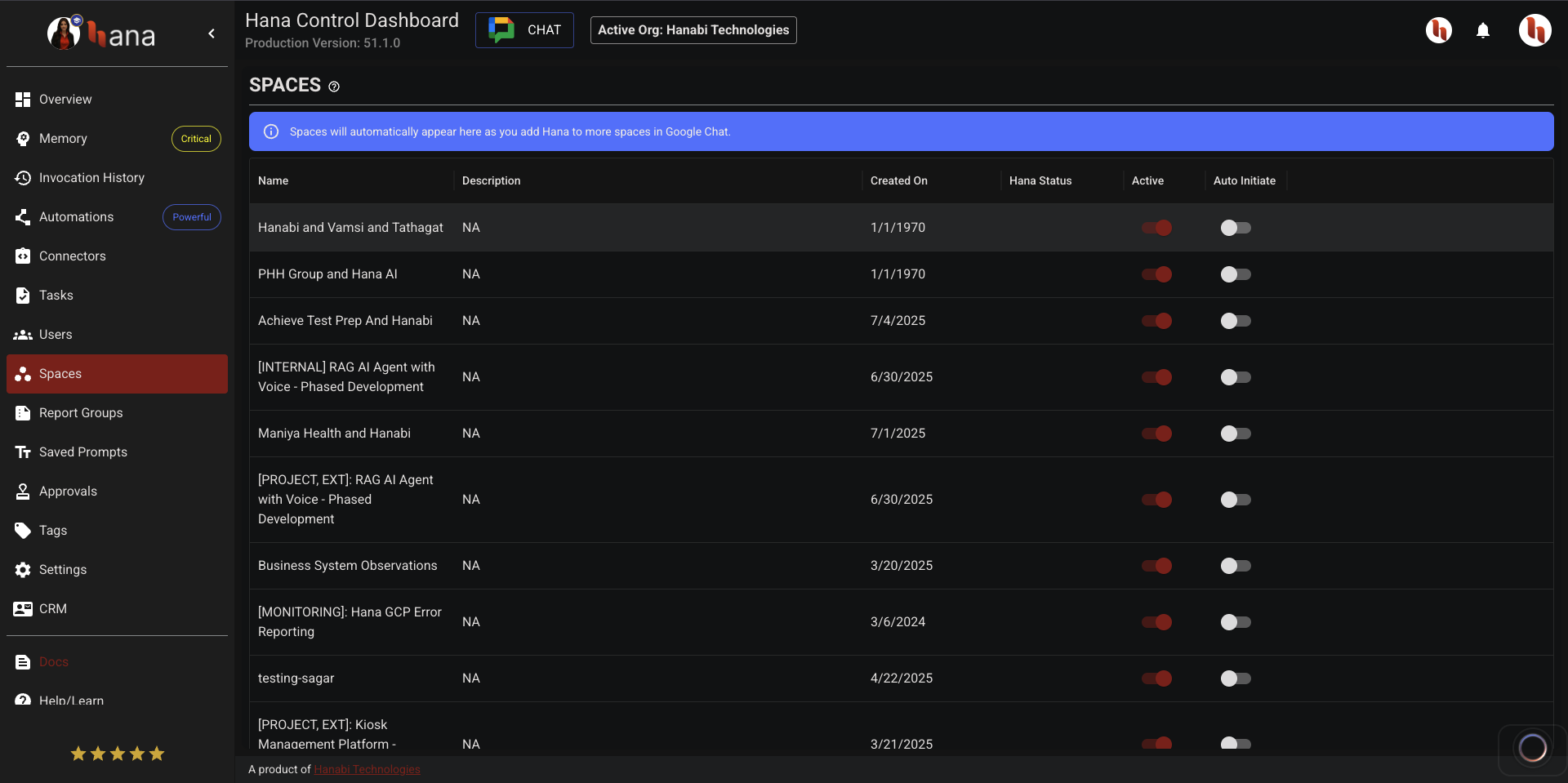
Use the Spaces page to view all Google Chat spaces in your organization and manage Hana’s behavior per space. This is the control center for where Hana can respond, how she should respond, and which spaces are synced into memory.
Why This Module Matters
- Teams often use different spaces for different workflows (daily standups, incidents, customer operations, leadership updates).
- Each space can have different collaboration rules and sensitivity.
- Space-level controls help you prevent noisy replies, reduce accidental context mixing, and keep memory ingestion intentional.
How Spaces Are Added
- Spaces are created in Google Chat, not in Hana Dashboard.
- A space appears in Hana after Hana is added/mentioned there and the sync catches up.
- If a newly added space does not appear immediately, refresh and check again after a short delay.
What You Can Manage
Typical space controls include:
- Whether Hana can respond in that space.
- Whether responses are limited to thread contexts.
- Whether the space can be used as a memory source (where enabled).
This lets you allow broad access in collaborative rooms while applying stricter behavior in sensitive or high-noise channels.
Recommended Setup Workflow
- Add Hana to the Google Chat space.
- Open
Hana Dashboard -> Spaces. - Confirm the correct active organization before changing any space setting.
- Find the space and apply the right behavior profile:
- High-signal execution space: allow replies, keep thread discipline, enable memory sync if needed.
- Sensitive leadership/legal space: stricter reply controls and selective memory ingestion.
- Social/noise-heavy space: restrict or disable responses.
- Validate by invoking Hana once in the target space.
Operational Best Practices
- Keep Google Chat Space Description and Guidelines clear and up to date.
- Use thread-first behavior in busy spaces to keep context scoped.
- Enable memory sync only for spaces that contain reusable knowledge.
- Recheck space controls when teams rename/repurpose spaces.
- Review active organization before asking sensitive questions in shared spaces.
tip
Hana automatically considers the Google Chat Space Description and Guidelines when replying to users. Setting these fields properly is recommended.
Troubleshooting
- Space not visible in dashboard:
- Confirm Hana is added to that space.
- Confirm you are in the correct active organization.
- Refresh and retry after sync delay.
- Hana not responding in a space:
- Check whether space-level response controls are disabled.
- Ensure the message invokes Hana correctly (for example
@Hana ...).
- Space memory not available in answers:
- Verify memory ingestion/sync is enabled for that space type.
- Confirm ingestion completed in Memory module before querying.
Example Invocations
@Hana summarize decisions from this space from the last 7 days.
@Hana list blockers mentioned in this thread and group by owner.
@Hana draft a follow-up message for unresolved action items from this space.